What Equipment Do You Need to Create an Online Course? (The Honest Answer)
You’ve decided to create an online course. So you open a browser tab, search “equipment for online course,” and within twenty minutes you’ve got a shopping cart with $2,000 of gear you don’t need.
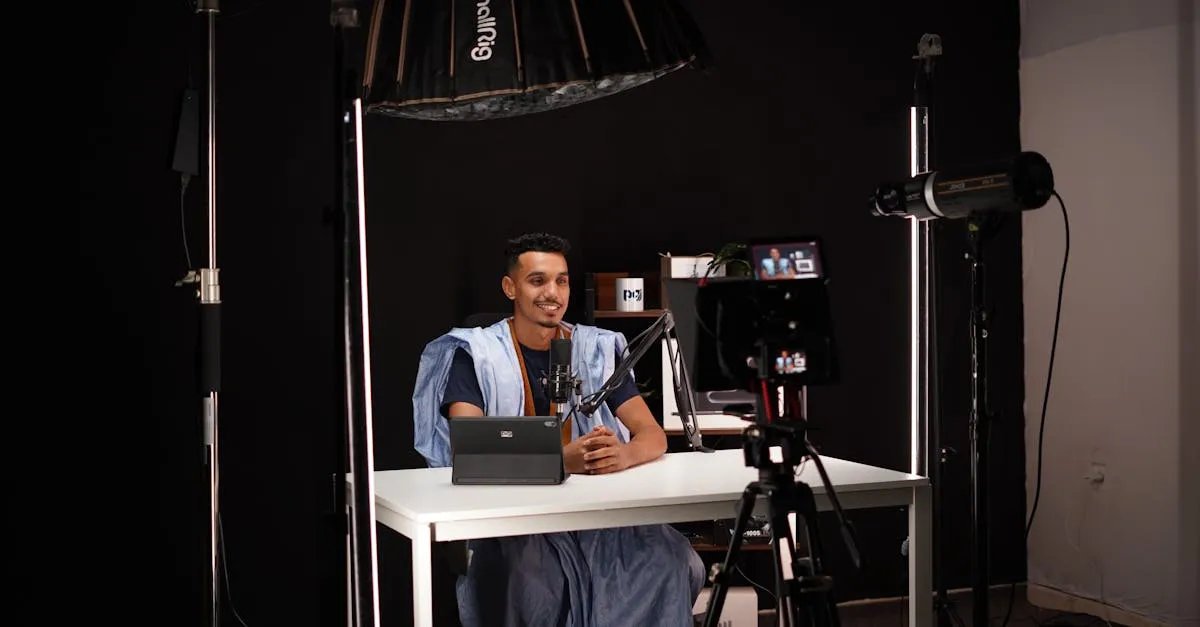
I’ve watched this happen hundreds of times. New course creators convince themselves they need a 4K camera, a teleprompter, a green screen, studio lighting, and a fancy microphone before they can record a single lesson. So they spend weeks researching. Then weeks more buying. Then weeks more setting it all up.
Meanwhile, the person who just hit record on their phone has already published three modules.
Here’s the truth: you need a microphone. That’s it. Everything else is optional, and I’ll prove it with three complete equipment lists — one for $0, one for $200, and one for $800.
If you want the short version, check out my Equipment page. But if you want the reasoning behind every recommendation — and the mistakes I’ve watched people make — keep reading.
The Only Thing You Actually Need
A decent microphone.
Bad video is forgivable. People watch grainy, shaky phone footage on YouTube every single day and don’t blink. But bad audio? Muffled, echoey, hissy audio? People click away in seconds. Study after study confirms that viewers will tolerate poor image quality but will not tolerate poor sound.
So before you spend a dollar on cameras or lights, make sure your audio is clean. That’s the non-negotiable. Everything after that is a quality upgrade, not a requirement.
The Three Budgets
I’ve broken this into three tiers. Each one will get you a publishable course. The difference between them is how polished the final product looks — not whether it’s good enough to sell.
Tier 1: The $0 Setup (What You Already Have)
You own everything on this list right now. No shopping required.
Camera: Your smartphone. The rear camera on any phone made in the last four years shoots 1080p video, which is plenty for an online course. Prop it up against a stack of books or a coffee mug. Done.
Microphone: The earbuds that came with your phone. The inline mic on Apple EarPods or Samsung earbuds is surprisingly decent for close-range speaking. Clip the cable to your shirt so the mic sits near your collarbone and doesn’t rub against fabric.
Lighting: A window. Stand facing a window so natural light hits your face. Do not sit with the window behind you — you’ll be a silhouette. Overcast days actually produce the best light because it’s soft and even. Direct sunlight creates harsh shadows.
Recording Software: OBS Studio (free, open source). It records your screen, your webcam, or both. The learning curve is about thirty minutes. There are hundreds of setup tutorials on YouTube.
Editing Software: DaVinci Resolve (free). This is professional-grade editing software that costs exactly zero dollars. It’s what I recommend in my Produce Course Videos course. DaVinci Resolve has a steeper learning curve than something like iMovie, but it handles everything you’ll ever need — color correction, audio cleanup, titles, transitions — without paying a cent.
Presentation Software: Google Slides (free). PowerPoint works too. Keynote if you’re on a Mac. Your slides don’t need to be beautiful. They need to be clear.
What this tier produces: A course that looks and sounds fine. Not flashy. Not cinematic. But perfectly sellable. I’ve seen $10,000 course launches recorded entirely on phones with earbud mics. The content carried the day, not the production value.
Who this tier is for: Anyone who hasn’t recorded their first lesson yet. Stop reading gear reviews. Open OBS. Hit record. Ship the course. You can always re-record later with better equipment once you know the process works.
Tier 2: The $200 Setup (The Smart Start)
This is the sweet spot. If you’re willing to spend a little money, these three items will meaningfully improve your course quality without meaningless spending.
Microphone (mandatory): Samson Q2U ($60). This is a dynamic USB microphone that plugs directly into your computer — no audio interface needed. It also has an XLR output, so if you ever upgrade to a professional audio chain, this mic grows with you.
Why the Q2U over a Blue Yeti or other popular USB mics? Two reasons. First, it’s a dynamic microphone, which means it rejects room noise. USB condenser mics like the Yeti pick up everything — your fridge, your dog, the neighbors. The Q2U focuses on your voice and ignores the rest. Second, it costs $60. I cover this in more detail in my Best Microphones post.
Camera (pick one):
-
Option A: Logitech C922 ($80). A solid webcam that shoots 1080p at 30fps. It mounts on your monitor, works out of the box, and looks significantly better than a laptop webcam. The built-in background removal feature is mediocre — skip it — but the raw video quality is good.
-
Option B: Keep using your phone. Honestly, a modern smartphone camera still beats most webcams under $150. If you already have a phone tripod or mount, you might skip the webcam entirely and put that $80 toward something else.
Lighting: Elgato Key Light ($130). This is a panel light that clamps to your desk and connects to your WiFi so you can adjust brightness and color temperature from an app. The big advantage over a cheap ring light: it’s positioned in front of you and slightly above eye level, which is the most flattering angle. Ring lights create flat, frontal lighting with a visible ring reflection in your glasses (if you wear them).
The Key Light is the one piece of equipment on this list that people question. “Can’t I just use a desk lamp?” You can. But cheap lights have inconsistent color temperatures that make your skin look orange or blue, and they’re usually not bright enough to compete with your monitor’s glow. The Key Light solves both problems cleanly.
What this tier produces: A course that looks professional. Viewers will notice the clean audio and good lighting even if they can’t articulate why it looks better. This is the setup I’d recommend to anyone launching their first or second course.
The math: Samson Q2U ($60) + Logitech C922 ($80) + Elgato Key Light ($130) = $270. If you skip the webcam and use your phone: $190. Either way, under $200 for the essentials if you shop sales or go phone-only.
Tier 3: The $800 Setup (The Serious Setup)
You’ve published a course or two. You’ve made some money. Now you want to invest in gear that will last for years and produce genuinely cinematic results.
Microphone: Samson Q2U ($60). Yes, the same mic from Tier 2. I’m not going to upsell you on a $300 microphone because you don’t need one. The Q2U is good enough for professional course production. Spend the money on the camera instead.
Add a boom arm ($20-30) to get the mic off your desk and positioned close to your mouth without cluttering your shot. Any basic spring-arm will do.
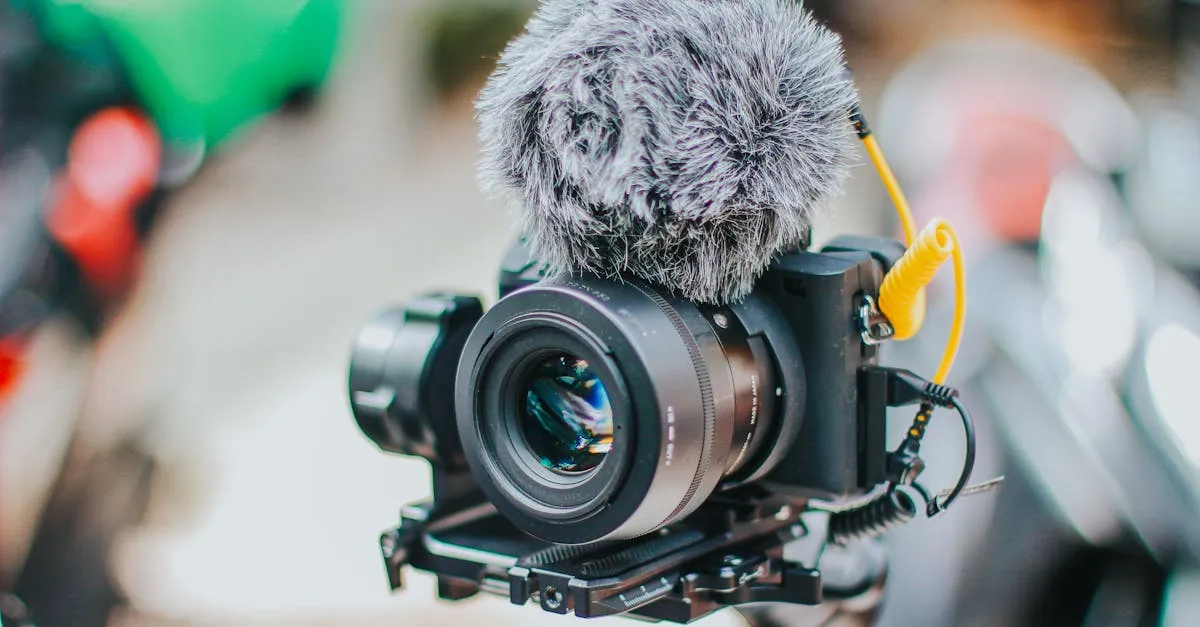
Camera: Sony ZV-E10 ($500-700 with kit lens). This is an interchangeable-lens mirrorless camera designed specifically for content creators. It has a flip-out screen so you can see yourself while recording, excellent autofocus that tracks your face, and a built-in directional mic (though you’ll use your Q2U instead).
The ZV-E10 produces footage that looks noticeably better than any webcam or smartphone. The larger sensor creates natural background blur (bokeh) that separates you from your background and makes the image feel more professional. I break down camera options in my Best Cameras post.
Lighting: Elgato Key Light ($130). Same light from Tier 2. It’s still the right choice at this price point. If you want to go further, add a second light at 45 degrees to fill shadows, but one Key Light is enough for a clean, professional look.
Boom Arm: A basic desk-mounted boom arm ($25-30). This positions your microphone just out of frame, close enough for clean audio without eating your desk space.
What this tier produces: A course that looks like it was produced by a media company. Smooth background blur, razor-sharp video, clean audio, and flattering light. If you’re charging premium prices ($500+ per course), this level of production reinforces the value.
The math: Samson Q2U ($60) + Sony ZV-E10 with kit lens ($550-700) + Elgato Key Light ($130) + boom arm ($30) = $770-920 depending on the camera deal you find.
What You Do NOT Need
Let me save you some money.
A green screen. Unless you’re doing daily newscasts or you need to composite yourself over complex backgrounds, a green screen is unnecessary. A clean, uncluttered room with decent lighting works better. Viewers trust a real background more than a digital one. A bookshelf, a plant, or a plain wall is all you need.
A teleprompter. If you need to read a script word-for-word, you’re probably over-scripting. Use bullet points instead. Talk to the camera like you’re explaining something to a friend. Your course will sound more natural and you’ll record faster.
A $300+ microphone. The audio quality difference between a $60 dynamic USB mic and a $300 condenser running through an audio interface is real but marginal. Your students won’t notice. Your wallet will. I explain exactly why in my Best Microphones breakdown.
A second monitor for your teleprompter. See above. Bullet points. Talk naturally.
A dedicated studio room. Nice if you have the space, but most course creators record in their office, bedroom, or living room. Pick a quiet room, hang a blanket on the wall behind you to dampen echo if needed, and call it done.
Professional editing software subscriptions. Adobe Premiere Pro is $23/month. DaVinci Resolve is free and does 95% of what Premiere does. Unless you’re already deep in the Adobe ecosystem, save the subscription money.
The Software You Need (All Free)
Hardware gets all the attention, but your software stack matters just as much. Here’s what I use and recommend:
- Recording: OBS Studio (free). Record your screen, webcam, or both simultaneously.
- Editing: DaVinci Resolve (free). Edit video, clean up audio, add titles, color-correct. Professional-grade software at no cost.
- Slides: Google Slides, Keynote, or PowerPoint. Use what you know.
- Thumbnail/graphics: Canva (free tier is enough). Simple, fast, looks decent.
That’s the entire stack. No paid subscriptions required.
My Actual Recommendation
If you’re reading this before recording your first lesson: use Tier 1. Right now. Today. Open OBS, plug in your earbuds, face a window, and record. Your first course doesn’t need to be perfect. It needs to exist.
If you’ve already published something and you’re ready to improve: buy the Samson Q2U. Just the mic. Record a few lessons with it. If you notice the improvement (you will), then add the Elgato Key Light. Then decide if you need a camera upgrade.
The incremental approach works because you only buy gear when you can articulate why your current setup is holding you back. Most people never get there. The Q2U and a Key Light are enough for the vast majority of course creators.
Stop Researching, Start Recording
Equipment anxiety is a form of procrastination. It feels productive — you’re “preparing” — but you’re not making progress on your course. I see this pattern in my guide on How to Create an Online Course: the people who succeed are the ones who start before they feel ready.
Your phone has a camera. Your earbuds have a microphone. Your window has light. OBS is free. DaVinci Resolve is free.
You have everything you need. Go record your first lesson.
Frequently Asked Questions
Only essential equipment?
A decent microphone. Viewers tolerate poor video but click away from poor audio within seconds. Everything else is optional.
Can I use only my smartphone?
Yes. Rear cameras on recent phones shoot 1080p. Combined with earbuds and window lighting, you have everything for a sellable course.
First microphone upgrade?
Samson Q2U at around $60. Dynamic USB that rejects room noise better than condensers. Has XLR output for future interface upgrade.
What do I NOT need?
Skip green screen, teleprompter, $300+ mics, and paid editing software (DaVinci Resolve is free). These are procrastination disguised as productivity.
Free software for recording and editing?
OBS Studio for recording, DaVinci Resolve for editing and audio cleanup, Google Slides for presentations. Entire stack costs zero.
You Might Also Like
Can You Create an Online Course Without Being on Camera? (Yes, Here's How)
Camera shy? You don't need to show your face. Screen recordings, slide presentations, AI avatars, and audio-only courses all work. Here are the 4 formats that don't require a camera.
How Long Should Your Online Course Be? (Here's What the Data Says)
Short answer: as long as it takes to deliver the transformation you promised. Long answer: here's what completion rates, student feedback, and 39,000+ trained professionals have taught me.
How Much Does It Cost to Create an Online Course? (The Real Numbers)
The honest cost breakdown from $0 to $5,000+. Most course creators spend way less than they think — and waste money on the wrong things. Here's where to invest and where to save.